QuietBuzz
Turn off notification vibration for every app except the ones you choose, without touching Do Not Disturb. 직접 고른 앱만 남기고 나머지 앱의 알림 진동을 끕니다. 방해 금지 모드는 건드리지 않습니다.
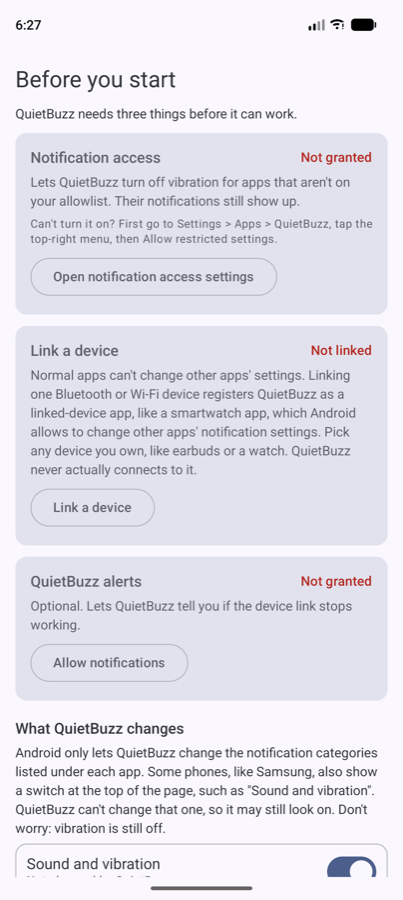
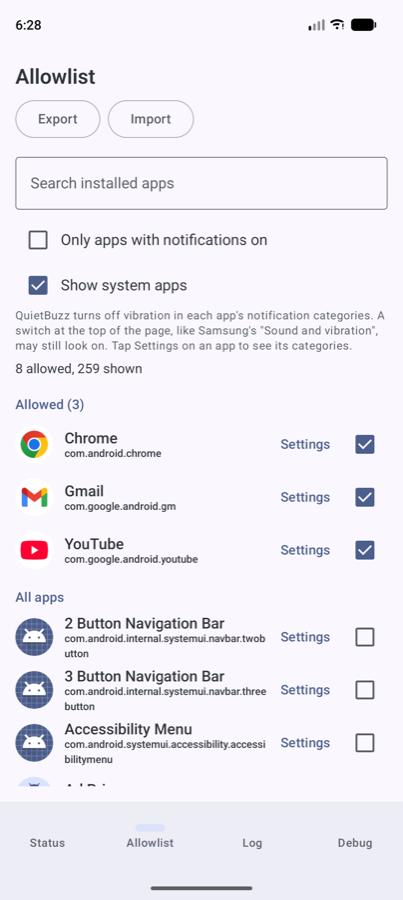
Android lets you put the whole phone in vibrate mode, but not choose which apps get to vibrate. QuietBuzz fills that gap: keep the phone in vibrate mode, and only a small allowlist you choose still buzzes. Every other app's notifications stay fully visible in the shade, silently. New installs are handled automatically.
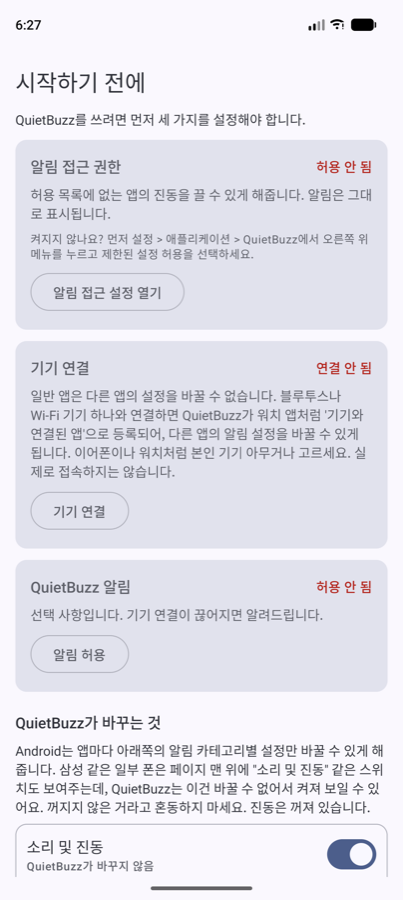
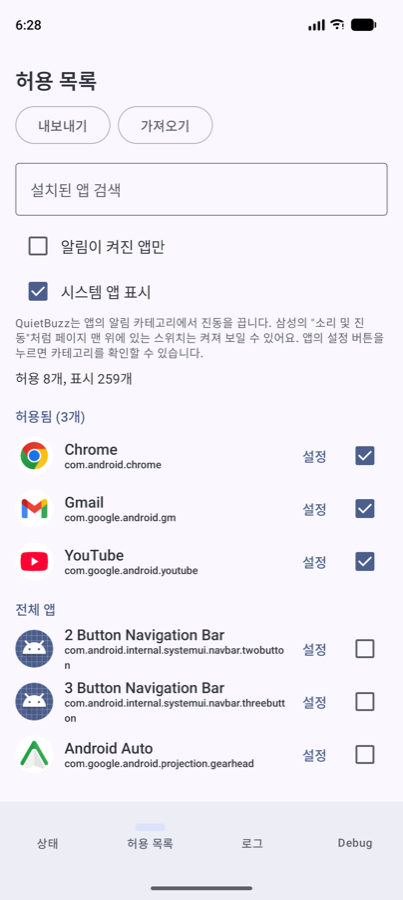
안드로이드는 폰 전체를 진동 모드로 둘 수는 있지만, 어떤 앱만 진동하게 할지는 고를 수 없습니다. QuietBuzz가 그 빈자리를 채웁니다. 폰을 진동 모드로 두면, 직접 고른 허용 목록의 앱만 진동합니다. 나머지 앱의 알림은 알림창에 그대로 보이되 조용히 옵니다. 새로 설치한 앱도 자동으로 처리됩니다.
Screens화면
How it works작동 원리
Only two kinds of caller can change another app's notification channels from outside that app:
the single system-wide Notification Assistant role, or a NotificationListenerService whose
app also holds a CompanionDeviceManager association. That's stated in Android's own API
reference; it isn't a workaround. QuietBuzz uses the second path. Linking any nearby device satisfies the
requirement (the device is never used afterward; it's a permission token, not a connection). The listener
then turns vibration off on every non-allowlisted app's channels.
That's the only thing it changes. Importance and sound are left alone, so an app's custom ringtone is never lost. Sound follows the phone's ringer mode: in vibrate mode no app plays sound anyway, and in sound mode every app plays sound normally.
다른 앱의 알림 채널을 외부에서 바꿀 수 있는 건 딱 두 경우뿐입니다. 시스템 전체에서 단 하나만
존재하는 알림 어시스턴트(Notification Assistant) 역할이거나, CompanionDeviceManager 연결을
보유한 NotificationListenerService입니다. 안드로이드 공식 API 문서에 명시된 내용이며,
우회 편법이 아닙니다. QuietBuzz는 두 번째 방법을 사용합니다. 근처 기기 아무거나와 연결하면 조건을
만족하고(그 기기는 이후 전혀 사용되지 않으며, 연결이 아니라 권한 토큰일 뿐입니다), 리스너가 허용 목록에
없는 모든 앱의 채널에서 진동을 끕니다.
바꾸는 건 진동뿐입니다. 중요도와 소리는 건드리지 않으므로 앱의 사용자 지정 알림음이 사라지지 않습니다. 소리는 폰의 벨소리 모드를 따릅니다. 진동 모드에서는 어떤 앱도 소리를 내지 않고, 소리 모드에서는 모든 앱이 평소처럼 소리를 냅니다.
What happens automatically무엇이 자동으로 처리되나요
| Trigger트리거 | What happens동작 |
|---|---|
| App installed앱 설치됨 | Vibration turned off within seconds. 설치 후 수 초 안에 자동으로 진동이 꺼집니다. |
| Listener (re)connects: boot, fresh grant, reconnect 리스너 (재)연결: 부팅, 최초 권한 허용, 재연결 | Full pass over every installed app. 설치된 모든 앱을 한 번씩 전체적으로 처리합니다. |
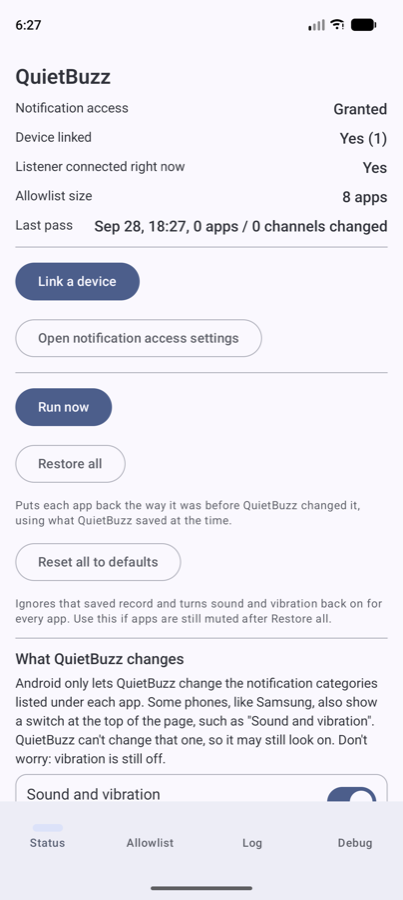
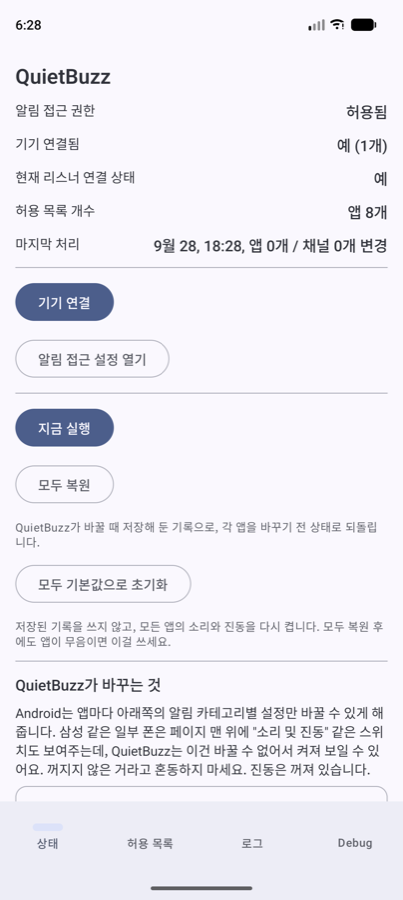
| You tap "Run now""지금 실행" 버튼 | Full pass, on demand. 언제든 수동으로 전체 처리를 실행합니다. |
| You tap "Restore all""모두 복원" 버튼 | Reverts every channel QuietBuzz changed back to how it was before. QuietBuzz가 바꾼 모든 채널을 원래 상태로 되돌립니다. |
| You tap "Reset all to defaults""모두 기본값으로 초기화" 버튼 | Recovery that ignores the backup: silent (LOW) categories go back to normal, vibration comes back on. 백업을 쓰지 않는 복구 기능입니다. 무음(LOW) 카테고리를 원래대로 되돌리고 진동을 다시 켭니다. |
| You check or uncheck an app in the allowlist 허용 목록에서 앱을 체크하거나 해제 | Checking restores its vibration right away; unchecking turns it off right away. 체크하면 바로 진동이 복원되고, 해제하면 바로 꺼집니다. |
| An existing app adds a new channel later 기존 앱이 나중에 새 채널을 추가함 | Not automatic: tap "Run now" if you notice one buzzing. 자동 처리 대상이 아닙니다: 알림이 울리면 "지금 실행"을 눌러주세요. |
How to use it사용 방법
-
Allow restricted settings제한된 설정 허용
Settings › Apps › QuietBuzz › ⋮ ›
Allow restricted settings: required for a sideloaded app. 설정 › 앱 › QuietBuzz › ⋮ ›제한된 설정 허용: 사이드로드한 앱에는 필수입니다. - Grant notification access알림 접근 권한 허용 The app's first screen explains each permission and opens the right settings page for you. 앱의 첫 화면에서 각 권한이 왜 필요한지 설명하고, 해당 설정 화면을 바로 열어줍니다.
- Link a device기기 연결 Pick any nearby device from the system picker. It doesn't matter which; prefer one you own. 시스템 선택 창에서 근처 기기 아무거나 고르세요. 어떤 기기든 상관없지만, 본인 소유 기기를 권장합니다.
- Run now, or just wait지금 실행 또는 그냥 기다리기 New app installs are caught automatically from here on. 이후 새로 설치되는 앱은 자동으로 감지됩니다.
- Set battery to Unrestricted배터리 사용을 "제한 없음"으로 설정 Settings › Apps › QuietBuzz › Battery › Unrestricted. 설정 › 앱 › QuietBuzz › 배터리 › 제한 없음.